How to Test If Your Phone Speaker Is Working Properly
A functional speaker is essential for basic mobile phone activities such as making calls, listening to music, watching videos, and using apps. If the sound seems muffled or distorted, or if the speaker stops working altogether, it can impact your daily usage. This guide explains how to check your phone’s speaker, identify common sound-related issues, and resolve them using simple methods. These steps are easy to follow, even if you have no technical experience.
1. Perform a Basic Sound Test
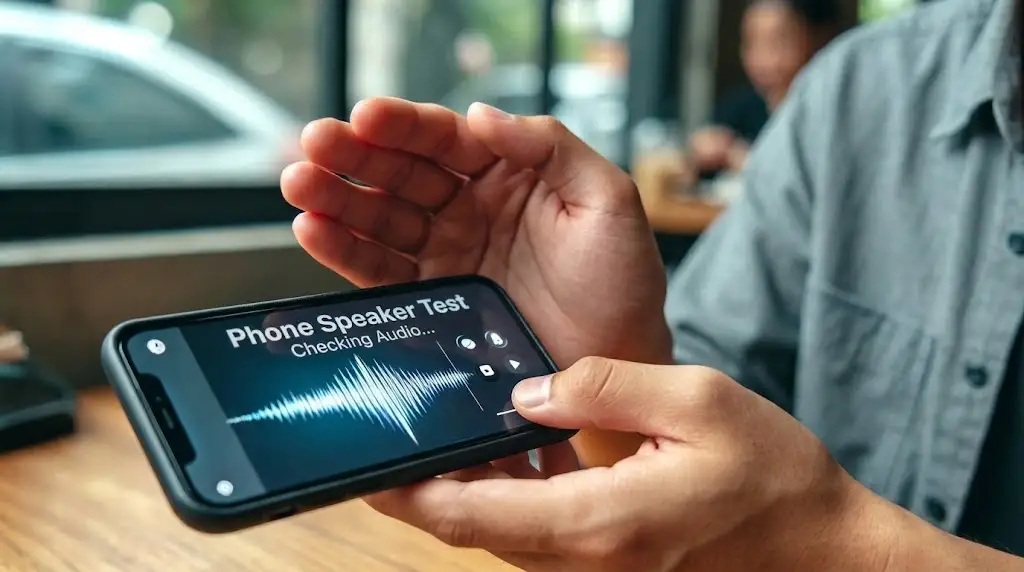
The easiest way to test your phone speaker is to play audio and check the sound quality. This simple test can help you find common speaker problems. Follow these steps:
- Play Audio from Multiple Sources: Open apps like YouTube, Spotify, Apple Music, or your phone’s music player. Play different types of audio, including music, videos, and podcasts. If the sound works in Spotify but not YouTube, the problem may be with the app rather than your phone speaker.
- Test Different Volume Levels: Use your phone’s volume buttons to increase and decrease the sound. Listen carefully at each level:
- Low Volume: Check if the sound is clear, too quiet, or completely missing.
- High Volume: Listen for crackling, buzzing, or distorted sound, which may indicate a speaker problem.
- Volume Controls: Make sure the sound changes smoothly when you adjust the volume.
- Check Sound Quality: Play different types of audio to check how well your speaker works:
- Bass: Play music with deep beats to check for rattling or unusual vibrations.
- Treble: Listen to high-pitched sounds to check for clear audio without harsh noise.
- Dialogue: Play a video with spoken words to see if voices sound clear or muffled.
- Test in Different Environments: Play audio in a quiet room to notice small sound issues. Then, try it in a noisy place to check if your phone speaker is loud enough to hear clearly.
If the sound is distorted, uneven, or missing across different apps and volume levels, your phone speaker may have a problem. However, if the sound works in some apps but not others, the issue could be related to the app or your phone’s software.
2. Use Your Phone’s Built-in Speaker Test (If Available)
Some smartphones have built-in diagnostic tools that help you check hardware, including the speaker. These tools can help you find out if your phone speaker is working properly. Here’s how to test it:
- For Android Devices:
- Open the Phone app and dial #0# on supported devices, mainly Samsung phones. This may open a diagnostic menu.
- Tap the Speaker option to play a test sound. Check the following:
- Clarity: Does the sound seem clear or muffled?
- Volume: Is the sound loud enough, or does it seem weak?
- If the sound is distorted or you cannot hear anything, your speaker may have a problem.
- For iPhone Users:
- iPhones do not have a built-in speaker test code, but you can use the Voice Memos app to check sound playback.
- Record a short voice message, then play it back and listen for clear sound.
- You can also go to Settings > Sounds & Haptics and play a ringtone or alert sound to check your phone’s speaker.
- What If Your Phone Lacks This Feature?
- If your phone does not have a diagnostic tool, play a built-in ringtone or alarm. Listen for clear sound without crackling, distortion, or unusual noise.
If the test sound plays clearly, your phone speaker is likely working properly. If you notice sound problems or hear nothing, try the next troubleshooting steps to find the cause.
3. Check for Physical Obstructions
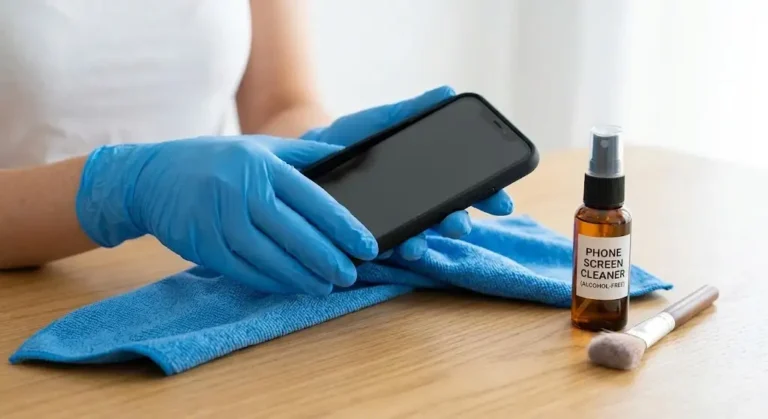
Dust, lint, and moisture can block your phone’s speaker and make the sound muffled or quieter than usual. Checking and cleaning the speaker may help restore clear sound. Follow these steps:
- Inspect the Speaker Grille:
- Find the speaker openings, usually at the bottom, top, or back of your phone. Use a flashlight to check for dust, lint, or other visible dirt.
- Clean Carefully:
- Soft Brush: Use a clean, soft-bristled brush to gently remove dirt from the speaker grille.
- Compressed Air: Avoid using compressed air, as it can damage the speaker or push dust deeper inside.
- Avoid Sharp Objects: Do not use pins, needles, or other sharp tools to clean the speaker. Also, avoid blowing into it with your mouth, as moisture can get inside.
- Handle Moisture:
- If your phone has recently been exposed to water, moisture may be affecting the sound. Try these steps:
- FixxMySpeaker.com: This online tool plays sound waves that may help push water out of your phone speaker. Point the speaker downward and follow the instructions.
- Natural Drying: Turn off your phone if it is wet and leave it in a dry, well-ventilated place. Avoid charging it until it is completely dry. Do not use rice, hairdryers, or other heat sources, as they may cause damage.
- If your phone has recently been exposed to water, moisture may be affecting the sound. Try these steps:
- Remove Accessories:
- Check whether your phone case or screen protector is blocking the speaker openings. Remove any accessories that may interfere with the sound, then test the speaker again.
If the sound becomes clear after cleaning, dust or another obstruction may have caused the problem. If the issue continues, move on to the next troubleshooting step.
4. Test Speaker Output During a Call
Most phones have an earpiece for regular calls and a loudspeaker for speakerphone calls. Testing both can help you find out which speaker is causing the problem. Follow these steps:
- Make a Test Call:
- Call a friend or use another phone. First, hold your phone to your ear and check if the sound is clear and loud enough.
- Next, turn on speakerphone and listen for any changes in sound quality.
- Evaluate Differences:
- If the earpiece works but the loudspeaker does not, or the other way around, one speaker may have a problem.
- Ask the other person if they can hear your voice clearly. If your voice sounds unclear to them, the issue may be with your phone’s microphone rather than its speaker.
- Rule Out Network Issues:
- Call different people to check whether the problem happens with every call. A weak network signal or an issue with the other person’s phone can also affect call quality.
If only one speaker has a problem, it may need separate troubleshooting or repair. If both speakers fail, continue with the next steps to identify the cause.
5. Use a Third-Party App for Advanced Testing
Third-party apps can help you test your phone speaker using different sound frequencies. They are useful for finding sound problems that may not be easy to notice during a basic test. Here’s how to use them:
- Recommended Apps:
- Android: Search for speaker testing apps on the Google Play Store.
- iPhone: Look for sound testing apps on the Apple App Store.
- Many apps are free to use, but some include ads or in-app purchases.
- Testing Process:
- Download and open a trusted speaker testing app, then choose the speaker test option.
- Play sounds at low, medium, and high frequencies. Listen carefully for the following:
- Clarity: Check for buzzing, crackling, or distorted sound.
- Sound Range: Listen for deep bass and clear high-pitched sounds.
- Consistency: Check whether the volume stays steady across different tones.
- Interpreting Results:
- Buzzing or Rattling: This may indicate a damaged speaker or loose internal parts.
- Weak Sound at Certain Frequencies: If some tones sound unusually quiet or are missing, your speaker may not be working properly.
- Precautions:
- Avoid apps that claim to repair damaged speakers or boost sound beyond safe levels. Software cannot fix physical speaker damage, and playing loud sounds for too long may cause further problems.
If the test reveals buzzing, distortion, or missing frequencies, your phone speaker may need further troubleshooting or professional repair.
6. Restart and Update Your Phone
Sometimes, software bugs or outdated system software can cause phone speaker problems. Restarting your phone or installing the latest updates may help fix these issues.
- Restart Your Phone:
- Turn off your phone, wait about 30 seconds, and turn it back on. This can clear temporary software errors that affect sound.
- Install Updates:
- Android: Open Settings and look for System > Software Update. The exact options may vary by phone.
- iPhone: Go to Settings > General > Software Update and install any available update.
- Why It Works:
- Restarting your phone refreshes its system, while software updates may fix bugs that affect audio playback.
Test your phone speaker after each step. If the sound returns to normal, a temporary software issue may have caused the problem. If the issue continues, try the next troubleshooting method.
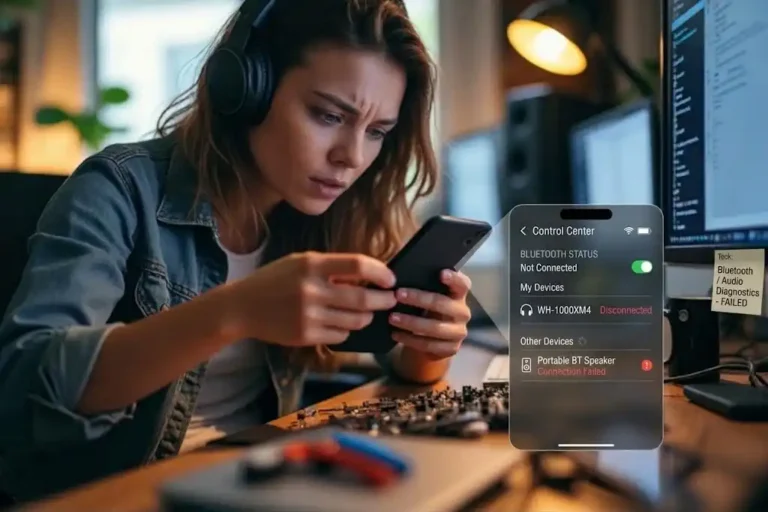
7. Check for Bluetooth or Headphone Issues
Sometimes, your phone sends audio to headphones or another device instead of its built-in speaker. Follow these steps to check and fix the problem.
- Turn Off Bluetooth:
- Go to Settings > Bluetooth and disconnect any connected headphones, speakers, or car audio systems. You can also turn Bluetooth off and test your phone speaker again.
- Check Headphone Mode:
- If you recently used wired headphones, your phone may still detect them as connected.
- Plug in and unplug the headphones once or twice, then restart your phone.
- If your phone has a headphone jack, check it for dust or debris. Clean it carefully with a soft brush.
- Check Audio Output:
- Some phones let you choose where the sound plays. Open your sound settings or audio output menu and select your phone speaker if another device is selected.
If your phone speaker works after these steps, the problem was likely caused by the audio output settings or a connected device rather than a damaged speaker.
8. Factory Reset as a Last Resort
If your phone speaker still does not work, a factory reset may help fix persistent software problems. However, it erases your phone’s data, so try this only as a last resort.
- Back Up Your Data:
- Save your photos, contacts, and important files to Google Drive, iCloud, or a computer before resetting your phone.
- Reset Your Phone:
- Android: Open Settings and look for System > Reset Options > Erase All Data (Factory Reset). The exact steps may vary by device.
- iPhone: Go to Settings > General > Transfer or Reset iPhone > Erase All Content and Settings.
- Follow the on-screen instructions to complete the reset.
- Test the Speaker Again:
- After resetting your phone, play some audio and check the sound quality. If the speaker works normally, a software issue may have caused the problem. If it still does not work, the speaker may have a hardware fault.
When to Seek Professional Help
If none of these steps fix your phone speaker, it may have a hardware problem, such as a damaged speaker or internal connection. Contact your phone’s manufacturer or visit an authorized repair center for help.
If your phone is still under warranty, check whether the repair or replacement is covered. A qualified technician can identify the cause and recommend the right solution.
Preventive Measures and Maintenance Tips
Taking care of your phone speaker can help prevent sound problems and keep audio clear. Follow these simple tips to maintain your speaker:
- Protect Your Phone from Water and Dust: Keep your phone away from liquids and dusty areas. Even water-resistant phones can develop speaker problems if moisture or dirt gets inside.
- Choose the Right Phone Case: Use a case with properly placed speaker openings so it does not block or reduce the sound.
- Clean the Speaker Regularly: Use a soft brush to gently remove dust and dirt from the speaker grille every few weeks.
- Avoid Maximum Volume for Long Periods: Listening at full volume for extended periods may affect sound quality over time. Keep the volume at a comfortable level whenever possible.
Conclusion
Testing your phone speaker helps you identify sound problems and find possible solutions. Start with a basic audio test, check your phone’s settings, clean the speaker carefully, and try software troubleshooting if needed.
If moisture is affecting the sound, an online tool like FixxMySpeaker.com may help remove some water using sound waves. However, it cannot fix physical damage. If your speaker still sounds muffled, distorted, or silent after trying these steps, contact a qualified technician.
With regular cleaning and proper care, you can help keep your phone speaker working clearly for longer.