A Step-by-Step Guide for Troubleshooting Phone Speakers
Phone speaker problems can be frustrating, especially when you cannot hear calls, music, or videos clearly. Sometimes, the cause is a simple setting, dust blocking the speaker, or a temporary software issue. In other cases, the speaker may be damaged.
This step-by-step guide explains how to troubleshoot phone speakers, check common sound problems, and find the right solution before paying for a repair.
1. Check the Volume Settings
Before trying anything else, check your phone’s volume settings. The sound may be turned down, muted, or controlled by an app.
Volume Levels
- Use the Volume Buttons: Press the volume-up button on your phone and check whether the sound becomes louder. Make sure the volume is not set too low.
- Check Sound Settings: Open Settings and look for Sound or Sounds & Haptics. Adjust the media, ringtone, and call volume as needed.
- Test While Playing Audio: Play a video or song and press the volume-up button. This helps you check whether the media volume is set correctly.
Mute Settings
- Check for Mute: If you are watching a video or listening to music, make sure the app’s player is not muted.
- Check the Silent Switch: Some iPhones have a Ring/Silent switch. Make sure it is not causing confusion when testing ringtones or alerts. Remember that silent mode usually does not mute music and video playback.
- Check Do Not Disturb: Turn off Do Not Disturb or similar modes if you are having trouble hearing calls or notifications. These settings usually do not affect media playback.
App-Specific Settings
Some apps have their own volume controls or sound settings. Check whether the problem happens in one app or across your entire phone.
Play audio from another app, such as your music player or a video app. If the sound works normally elsewhere, the problem may be related to the original app. Try adjusting its settings or updating it.
2. Inspect for Physical Damage
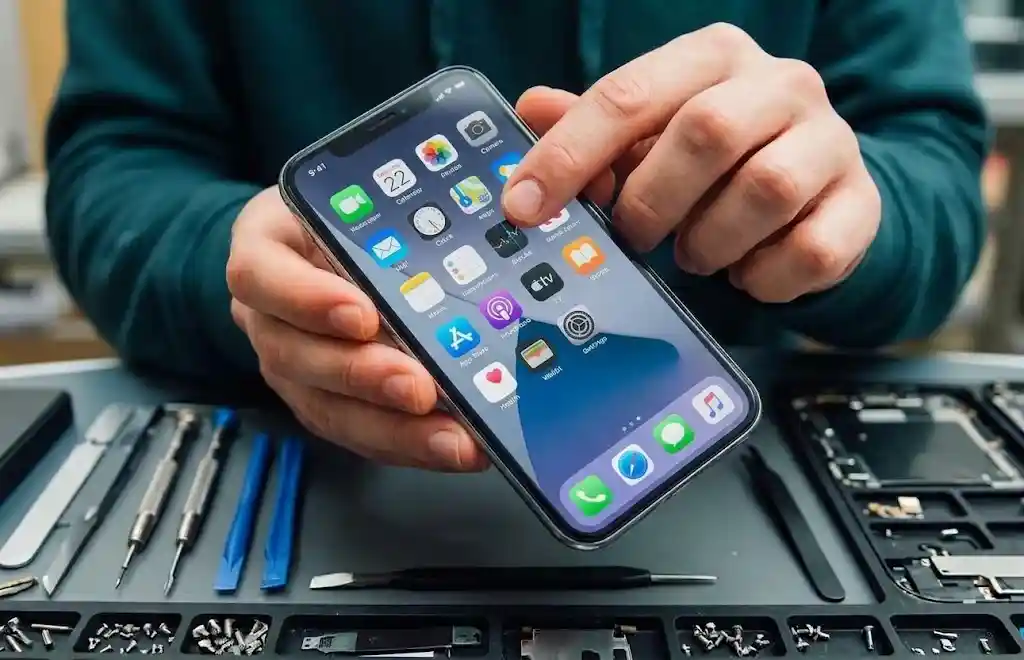
Dust, dirt, and physical damage can affect your phone speaker. A quick inspection may help you identify the cause of muffled or distorted sound.
Speaker Grille
Check the speaker openings for dust, lint, or other debris. These openings are usually found along the bottom edge of the phone, although their location varies by model.
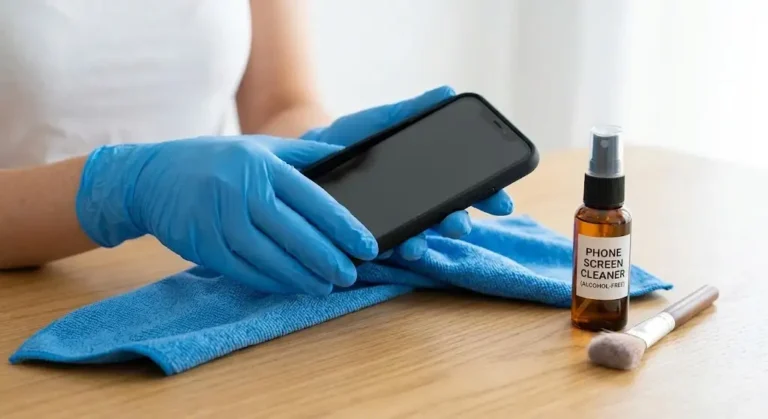
If you notice dirt, gently clean the speaker grille with a clean, soft-bristled brush. Avoid sharp objects, liquids, and compressed air, as they may damage the speaker or push dirt further inside.
For more tips on keeping your phone clean, check out our guide on How to Test If Your Phone Speaker Is Working Properly.
Physical Damage
Look for cracks, dents, or other visible damage around the speaker openings. Also, check whether your phone case is blocking the speaker.
If your phone has been dropped or the sound became distorted after an impact, the speaker or its internal connections may be damaged. Avoid opening the phone yourself unless you have the right tools and experience. A repair technician can inspect the device and recommend a suitable fix.
3. Restart Your Phone
A simple restart can fix temporary software problems that affect your phone’s sound. It is one of the easiest troubleshooting steps to try.
Follow these steps:
- Turn off your phone.
- Wait about 30 seconds.
- Turn it back on.
- Play a song or video to test the speaker.
Restarting your phone refreshes its system and may resolve minor audio glitches. If the speaker works normally afterward, a temporary software issue may have caused the problem.
If the sound is still missing, muffled, or distorted, move on to the next step.
4. Check for Software Issues
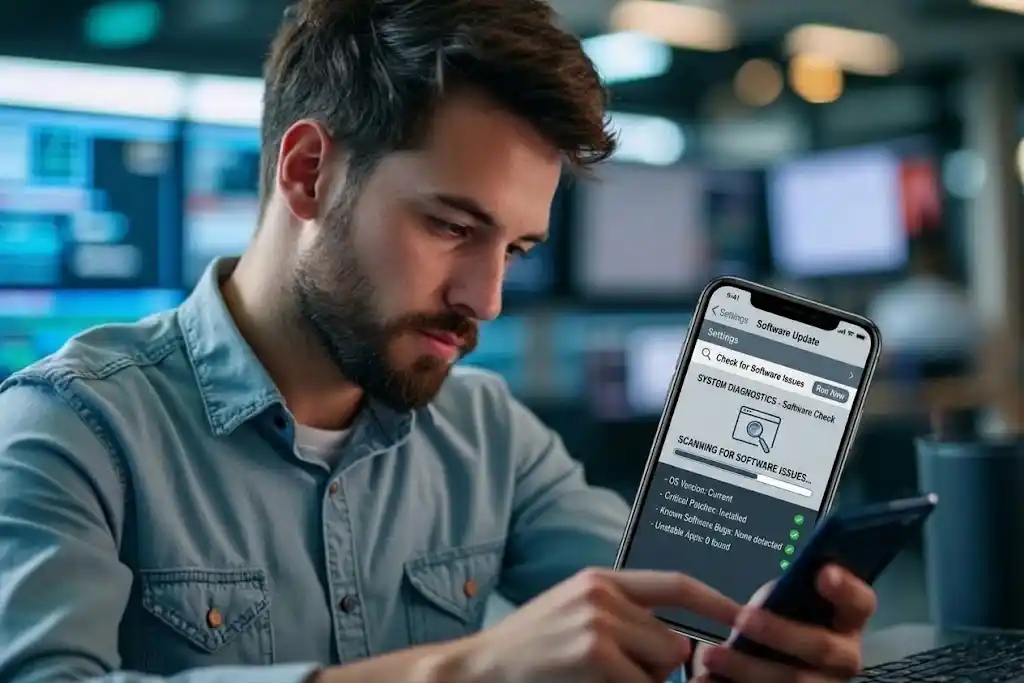
Outdated software or app problems can sometimes affect audio playback. Updating your phone and checking the affected apps may help restore normal sound.
Update Your Phone
Phone manufacturers release software updates to fix bugs, improve performance, and address security issues. Some updates may also resolve audio problems.
- Android: Open Settings and look for System Update or Software Update. Install any available update.
- iPhone: Go to Settings > General > Software Update and check for an available update.
The exact menu names may vary depending on your phone model.
Clear Cache
If the sound problem happens only in one app, clearing its cache may help. This option is mainly available on Android devices.
- Android: Open Settings > Apps, select the affected app, and look for Storage or Storage & Cache. Tap Clear Cache if the option is available.
- iPhone: iOS does not offer a general cache-clearing option for every app. Try closing and reopening the app, updating it, or reinstalling it if the problem continues.
Clearing an app’s cache should not normally remove your personal files, but avoid selecting Clear Data or Clear Storage unless you understand what will be deleted.
After making these changes, play audio again to see whether the problem has been fixed.
5. Test the Speaker
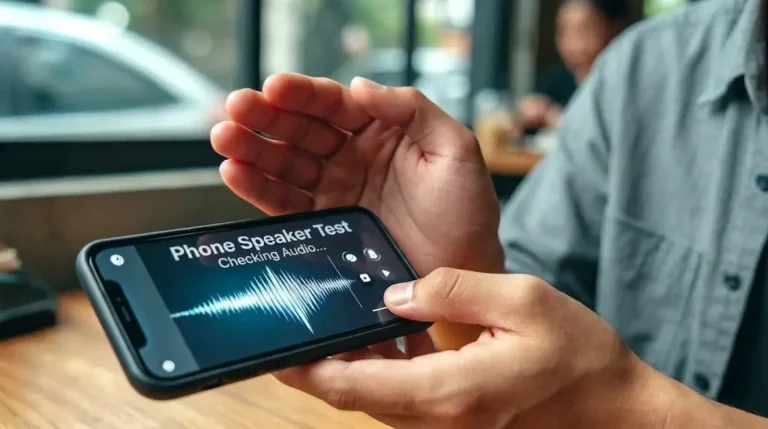
Testing your phone speaker with different sounds can help you understand whether the problem affects all audio or only certain sounds.
You can use a trusted speaker testing app or visit Fix My Speaker to try an online sound tool.
Follow these steps:
- Disconnect your headphones and other audio devices.
- Open a speaker testing tool or play audio from a trusted app.
- Start with a low volume and increase it gradually.
- Test different sounds, including speech, music, and low- and high-frequency tones.
- Listen for buzzing, crackling, distortion, or unusually low volume.
If the sound is clear during some tests but not others, the issue may be related to the audio source or a particular frequency. If the sound is consistently weak or distorted across different apps, there may be a problem with the speaker itself.
Keep the volume at a comfortable level during testing. Playing loud tones for too long is unnecessary and may be uncomfortable.
6. Use Headphones or Bluetooth
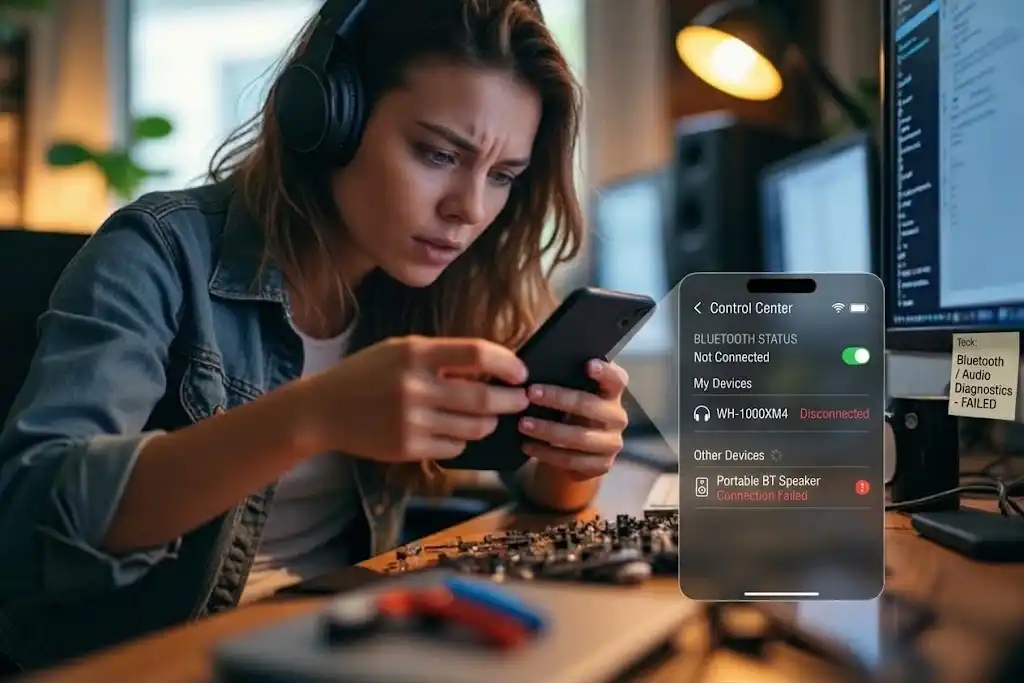
Headphones and Bluetooth devices can help you determine whether the problem is limited to your phone’s built-in speaker.
Headphones
Connect a pair of wired or compatible wireless headphones and play some audio.
If you can hear the sound clearly through your headphones but not through the phone speaker, the built-in speaker may be the problem. However, check your audio settings before assuming the speaker is damaged.
If there is no sound through the headphones either, the issue could be related to the app, software, or audio output settings.
Bluetooth
Connect your phone to a Bluetooth speaker, wireless headphones, or another compatible audio device.
If the sound plays normally through the connected device, but not through your phone’s built-in speaker, the internal speaker may need further checking.
After testing, disconnect the Bluetooth device and play audio through your phone again. Also, make sure your phone is not accidentally sending sound to another connected device.
7. Check for Water Damage
Water or moisture can cause your phone speaker to sound muffled, weak, or distorted. If your phone has recently been exposed to water, check for signs of moisture before continuing with other tests.
Look for moisture around the charging port, speaker openings, and other exposed areas. Some phones also have a liquid contact indicator, but its location and appearance vary by model.
If your phone is wet, follow these precautions:
- Turn off the phone if it has been exposed to a significant amount of water or is showing signs of malfunction.
- Disconnect the charger and other accessories.
- Wipe the outside with a soft, dry cloth.
- Leave the phone in a dry, well-ventilated place.
- Do not charge the phone until you are confident the charging port is dry.
Avoid using a hairdryer, placing the phone in rice, or inserting objects into its openings. Heat and debris can cause further damage.
If the speaker sounds muffled after minor moisture exposure, a sound-based water removal tool may help with some water near the speaker grille. However, it cannot repair internal water damage. If the phone stops working properly or the sound does not improve, contact a repair technician.
8. Factory Reset
If you have tried the other troubleshooting steps and your phone speaker still does not work, a factory reset may help rule out persistent software problems.
A factory reset erases your personal data, installed apps, and settings. It should only be used as a last resort.
Before resetting your phone, back up your photos, contacts, documents, and other important files to a computer or a trusted cloud service, such as Google Drive or iCloud.
For Android Devices
- Open Settings.
- Go to System or General Management, depending on your phone.
- Find Reset Options or the Reset menu.
- Select Erase All Data or Factory Data Reset.
- Review the warning and follow the on-screen instructions.
You may need to enter your phone’s PIN or password to confirm the reset.
For iOS Devices
- Open Settings.
- Tap General.
- Select Transfer or Reset iPhone.
- Tap Erase All Content and Settings.
- Follow the instructions to confirm.
Once the reset is complete, test your phone speaker before reinstalling all your apps. If the sound works normally, a software issue may have been responsible. If the problem remains, the cause may be hardware-related.
Remember that a factory reset does not repair a physically damaged speaker.
9. Professional Repair
If your phone speaker still does not work after troubleshooting, professional repair may be necessary. A technician can check for speaker damage, faulty connections, or problems caused by water or impact.
Warranty or Insurance
Before paying for a repair, check whether your phone is still covered by its manufacturer’s warranty or an insurance plan.
Review your warranty terms and contact the manufacturer or seller to ask whether speaker repairs are covered. Accidental damage and water damage may not be included in a standard warranty.
If you have phone insurance, check the coverage and any applicable deductible. You may need proof of purchase or other documents when making a claim.
Third-Party Repair
If your warranty has expired, you can consider a reputable third-party repair shop.
Before choosing a repair service, keep these points in mind:
- Check Reviews: Look for customer feedback and experience with your phone brand.
- Ask for a Quote: Compare repair costs from a few reliable shops before making a decision.
- Ask About Parts: Find out whether the shop uses original or compatible replacement parts.
- Check the Repair Warranty: Ask whether the repair and replacement parts are covered by a service warranty.
- Protect Your Data: Back up important files and ask how your personal information will be handled during the repair.
A qualified technician can confirm whether the speaker needs replacement or if another component is causing the sound problem.
10. Preventive Measures
A few simple habits can help protect your phone speaker and reduce the chances of future sound problems.
Environmental Protection
Keep your phone away from water, sand, and dusty environments whenever possible. If you need to use it in these conditions, consider a suitable protective case.
Even water-resistant phones are not completely waterproof, and their resistance may decrease over time. If your phone gets wet, dry the outside carefully and follow the manufacturer’s instructions before charging it.
Avoid leaving your phone in very hot places, such as a car parked in direct sunlight.
Physical Protection
Use a good-quality phone case that does not block the speaker openings. Choose one that fits your phone properly and provides protection against everyday bumps and drops.
Handle your phone carefully and avoid pressing objects into the speaker grille. If the phone is dropped, check that the sound still works normally.
Volume Management
Avoid listening at maximum volume for long periods. Keep the volume at a comfortable level and reduce it if you notice distortion or buzzing.
If your phone has an equalizer, use moderate settings rather than excessive bass boosts. If the sound becomes distorted, lower the volume instead of trying to make the speaker louder.
Regular Cleaning
Dust and lint can build up around the speaker grille over time. Check the openings regularly and use a clean, soft-bristled brush to remove loose dirt.
Avoid liquids, sharp objects, and compressed air when cleaning the speaker. Gentle cleaning is usually safer and helps prevent accidental damage.
By following these steps, you can identify common phone speaker problems and try the right fixes before seeking professional help. If the sound remains distorted, weak, or completely missing, a technician can help determine whether your phone needs repair. Regular care and careful troubleshooting can also help keep your speaker working properly.